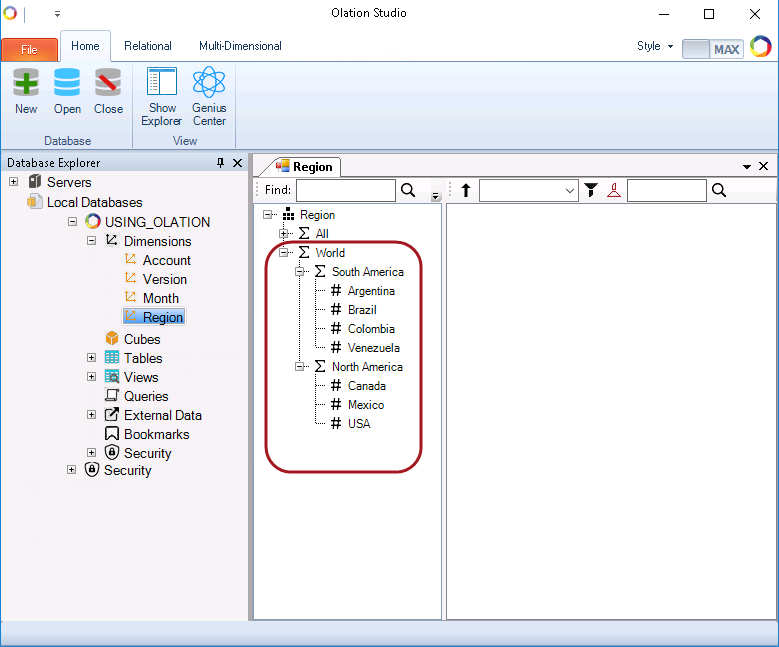
This feature defines the hierarchy
 structure of a Dimension.
In this example, which leverages information in an underlying relational table, parent-child relationships exist in the dim_Accounts table, ensuring that an accurate calculation occurs when Sales and Cost of Sales "hierarchize" as Margin.
To create a Hierarchy:
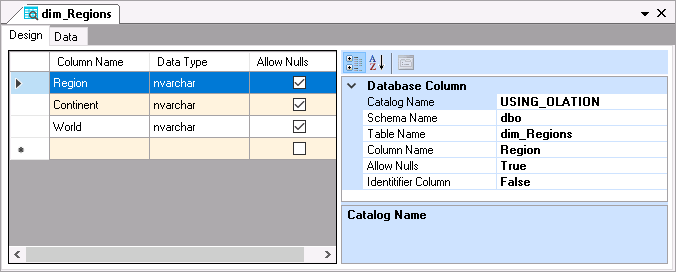
1. In the Table window of the corresponding relational component, go to Design Tab and select a column that serves as root member.
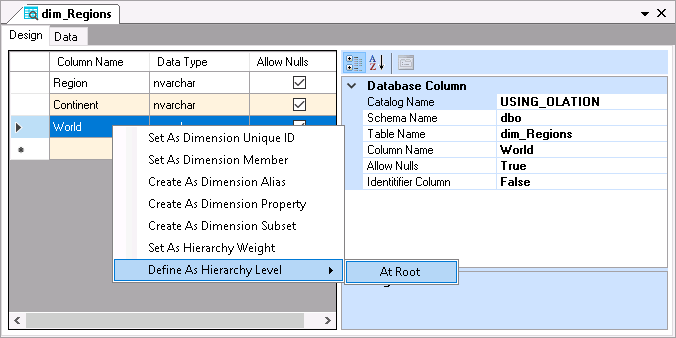
2. Right-click on the column, select Define As Hierarchy Level and click At Root.
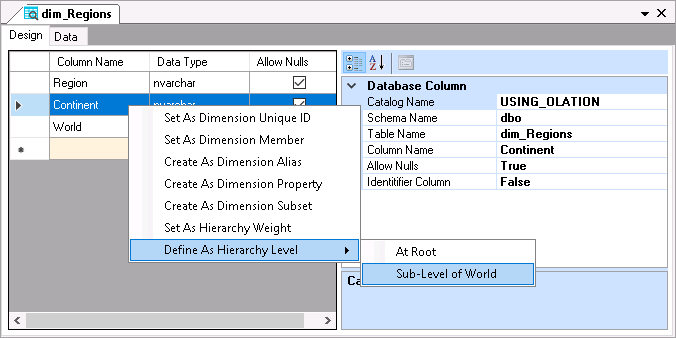
3. Select the direct child of root, right-click on it, then select Define As Hierarchy Level; then click Sub-level of <rootname>.
4. Continue defining the rest of the
hierarchy by following the same steps.
Note: By default, the lowest or
leaf-level Members are those derived from the columns designated as Dimension
Members. There is no need to define those Dimension Members as a sub-level
of a particular parent within the Hierarchy. It isn’t necessary to explicitly
define these Dimension Members as a child level of a parent in the hierarchy.
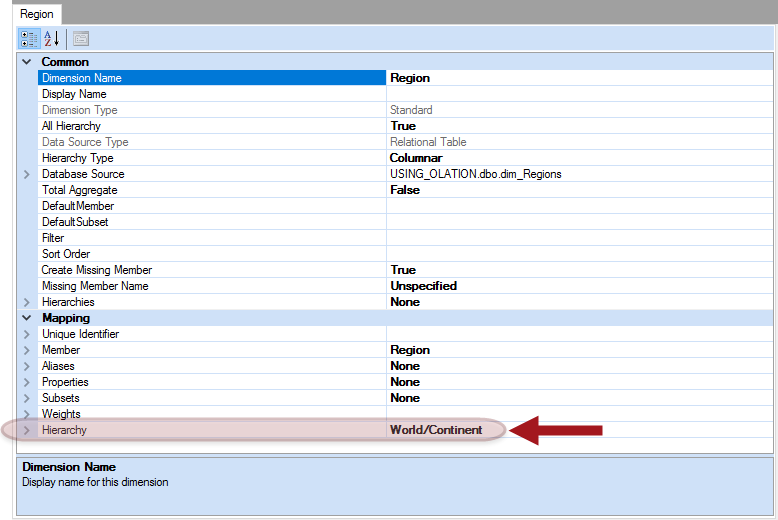
A hierarchy has now been established for the Dimension. If, in another scenario, you want to add additional Members as children or descendants within the hierarchy, you would follow the same steps. The hierarchy you’ve created for the Dimension Members will appear in the Property Grid.
To
view an example, click this link: