
In order for PowerExcel to work, these applications must be installed properly on your machine:
 :
:
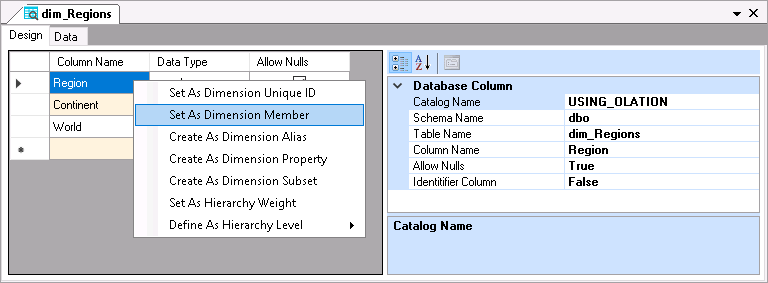
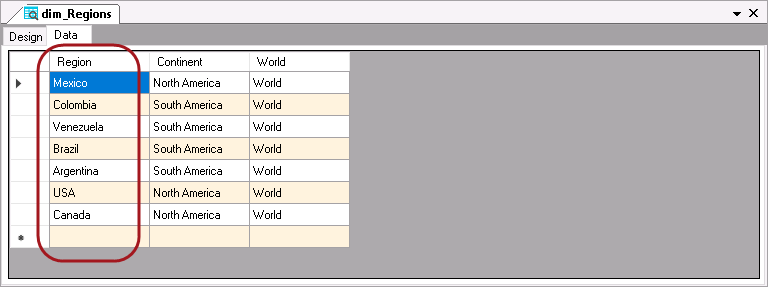
• As an example, the Region dimension created from the dim_Regions table: this table consists of the columns: Region, Continent and World. You will want to create the Members of the Region dimension based on the Region column which consists of the regions Mexico, Colombia, Venezuela, Brazil, Argentina, USA and Canada (you will see the information/record when you view the Data Tab).
Below is an image of the Design Tab showing all the existing columns: as in the example, we will set the Region column as the Dimension Member.
• Below is an image of the Data Tab showing all the individual regions that are contained in the Region column. By setting the Region column (the first column-circled in the following image) as the Dimension Member, later when you later view the Dimension or create a Cube using Region dimension, you will see these individual regions (i.e., Mexico, Colombia, Venezuela, etc...) as the component Members of the Region dimension.
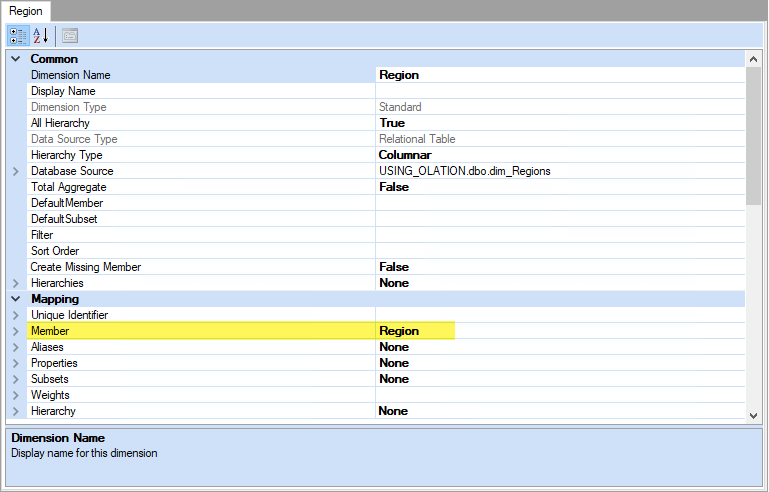
• By looking at the Property Grid section of the Table Window, you will also see indicated in there that the Region column has been set as the Dimension Member (circled in the following image):
• After
clicking the SAVE button along the Table Tab of the Olation ribbon,
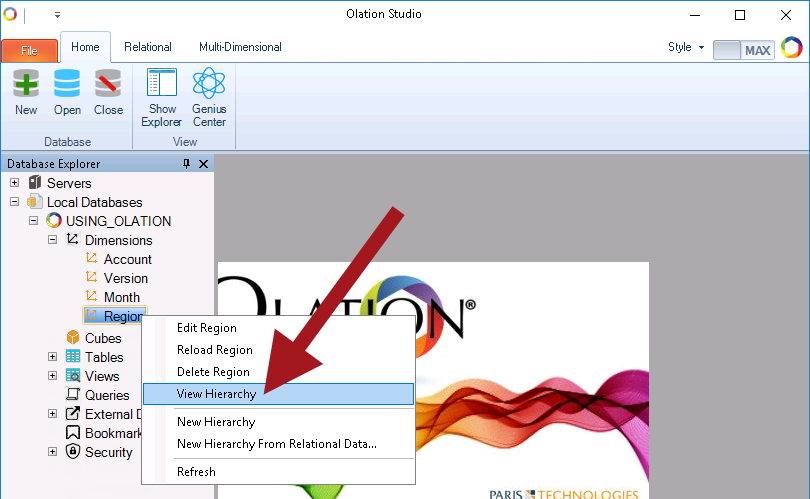
you can check the Dimension Members created by:
- Going to the Database Explorer pane > Expand Dimensions
> select then right-click on the appropriate Dimension name;
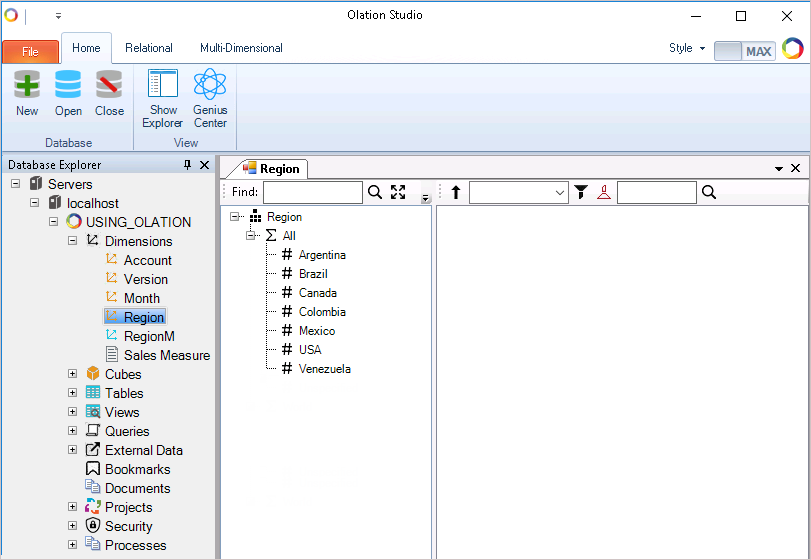
then select View Hierarchy option:
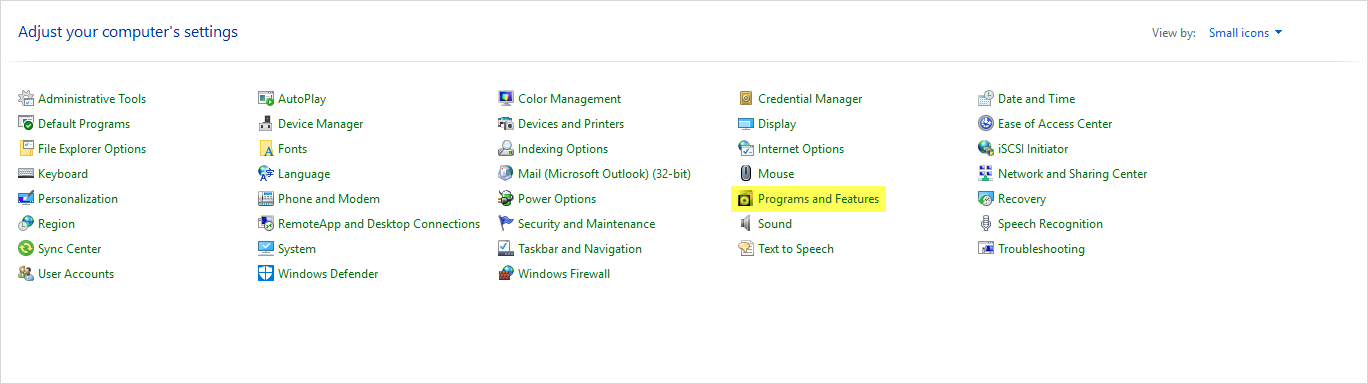
1. Launch the Control Panel and click Programs and Features (highlighted in yellow in the image below).
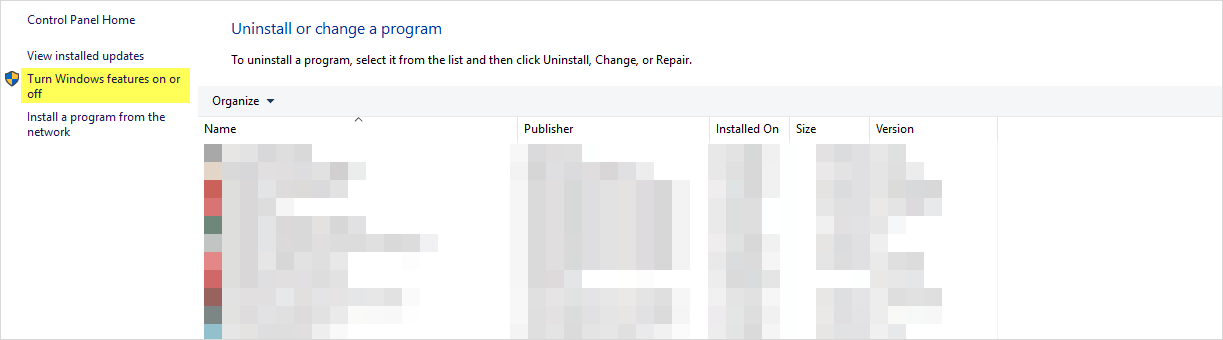
2. Click the Turn Windows features on or off option (highlighted in yellow in the image below) located on the left-side of the window.
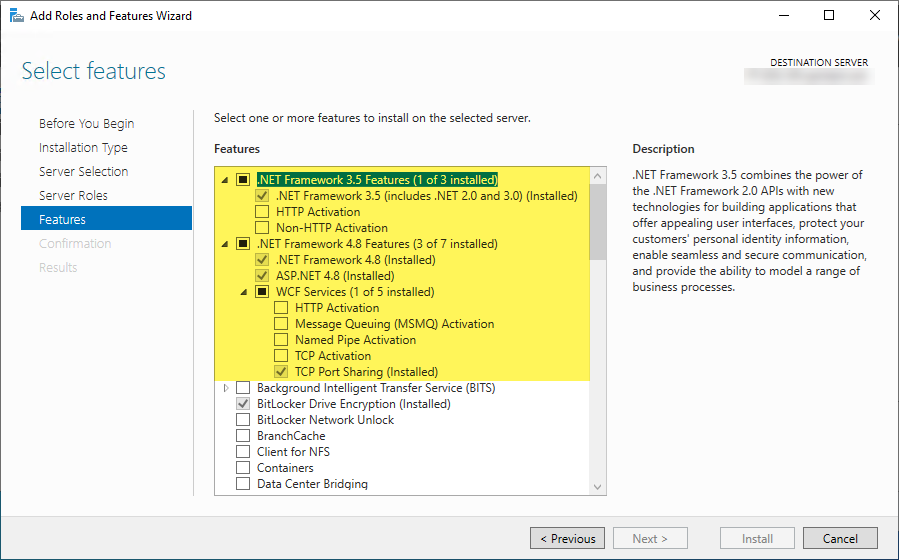
3. You are directed to the Add Roles and Features Wizard dialog. On the left pane, click Features.
4. The Windows features, .Net Framework 3.5 (or later) and .Net Framework 4.8, should be in the Windows Features list (see highlighted in yellow in the picture below). Ensure the features are selected as seen in the picture below.
5. If it does not appear, instructions
for download and install follow:
Download .Net 3.5:
https://dotnet.microsoft.com/download/dotnet-framework/net35-sp1
Download .Net 4.8: https://support.microsoft.com/en-us/topic/microsoft-net-framework-4-8-offline-installer-for-windows-9d23f658-3b97-68ab-d013-aa3c3e7495e0