
Here, we will demonstrate how to create a Measure Member of the Calculated Member type.
Creating a Calculated Member
For this example, we will be adding a Calculated Member to the Measure dimension.
In this sample demonstration, the Cube was created from a relational table called Factdata with the following table structure and data:

A view of the Factdata table values
In this demo, a Cube called Sales was created using the above table. This Cube will be modified to add a Measure Member, specifically of the Calculated Measure Member type, which will be named as "Calculated Measure".
To do so:
1. Start by either creating a new cube or editing an existing one. This will open the Cube Definition window for the selected cube.
In this example, we will edit the existing Sales cube.
2. In the Cube Definition window, go to the Measures tab.
The Measures tab is where you define or create the Measure Members to be included in the cube. Assuming that in this cube, the Amount column was already assigned as a member of the Measure dimension.
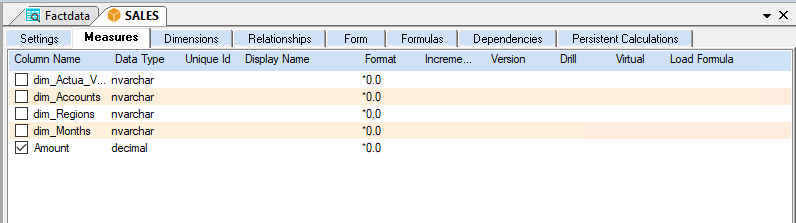
Next step is to create a new Calculated Member.
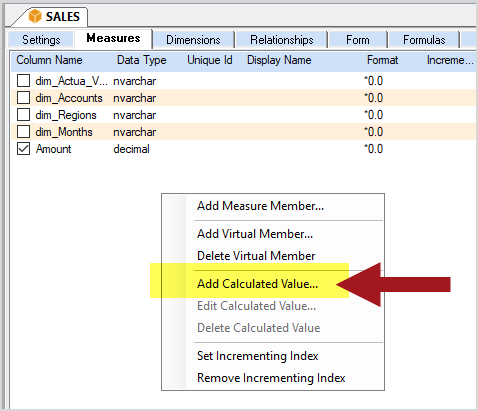
3. In the Measures tab, right click anywhere inside the tab and select the Add Calculated Value option.
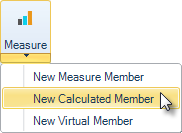
Alternatively, click on the Add Measure icon located on the Cube tab of the Relational window and select the New Calculated Member option.
This will bring up the Create New Calculated Measure dialog box.

4. Enter the <name> of the Calculated
Member.
For this example, name the new measure member as Calculated Measure.
5. Click Create.
This will bring up the Edit Calculated Measure dialog, where the formula or equation for generating the values for the Calculated Member type is defined.
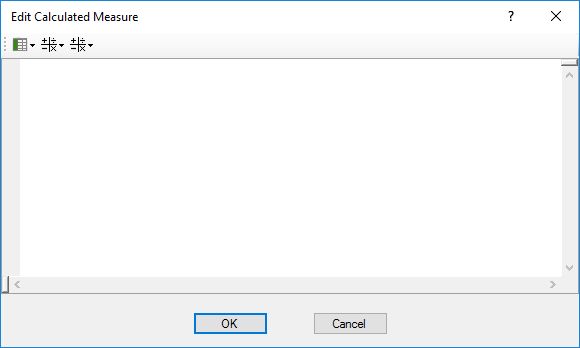
A Calculated Member is a type of Measure Member having values that appear to be coming from the source relational database. The calculation for the Calculated Member values is computed as the data is brought into the Olation cube coming from the relational database.
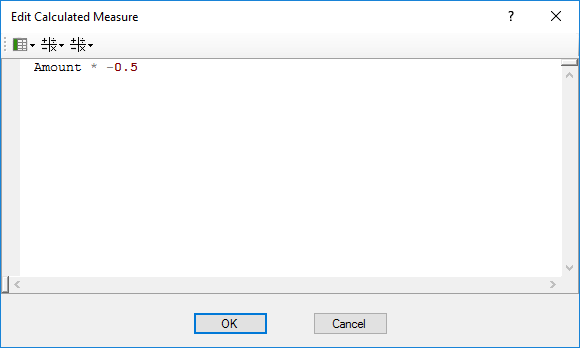
Next is to write the formula for the Calculated Measure. You can make use of the different buttons in the above dialog when writing the formula for a Calculated Member.
Assume that the formula to compute for Calculated Measure is as follows:
CALCULATED MEASURE = AMOUNT x -0.5
6. Write your formula as follows:
a. Click on the Measure Columns button and select the column Amount.
b. Press <space bar> to create space.
c. Click on the Mathematical Operators button and select asterisk (*) as operation.
d. Press <space bar> to create space.
e. Type -0.50.
The example formula appears as follows:
7. Click OK.
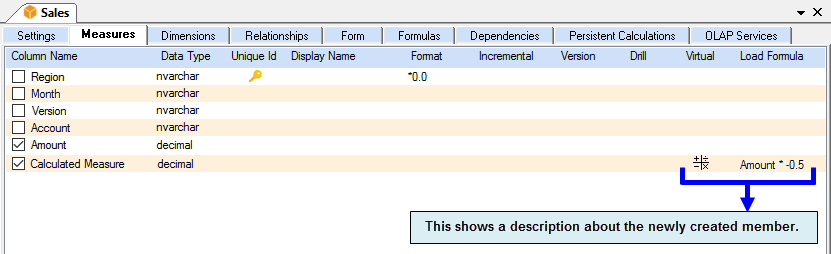
The Calculated Measure member is now added into the Measures tab. Notice that description regarding the measure member shows that this measure member is Calculated and also displays the equation that was used to derive the values.
8. Click the Save Cube icon found on the ribbon.
This completes the creation of the Calculated Member.
If you try to view the fact data within the Sales cube — including the values for the newly created Calculated Measure — by right-clicking the Sales cube in OLATION and selecting Edit Values, you will notice that a new column has been added to the cube. This new column corresponds to the Calculated Measure member that was just created.
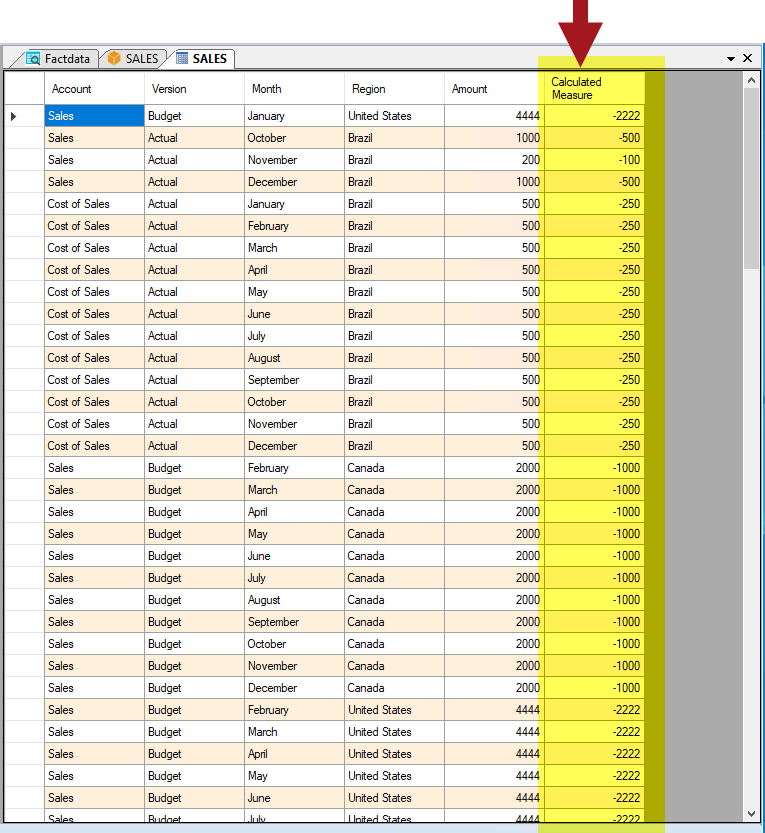
A view of the Sales cube values
Viewing the Result
When viewing the Sales cube in OLATION through front-end tools like PowerExcel or PowerOLAP, you will also see that the new measure member, Calculated Measure, has been successfully created. All related intersections are populated with values calculated based on the defined formula.
The first example, shows the SALES cube data using PowerExcel as front-end.
Note: You may re-arrange the Slice as below so you can view the Measures along the columns. Notice the new measure member called Calculated Measure appear on column C. The fact data that appears are indeed computed at 50% of the Amount data.
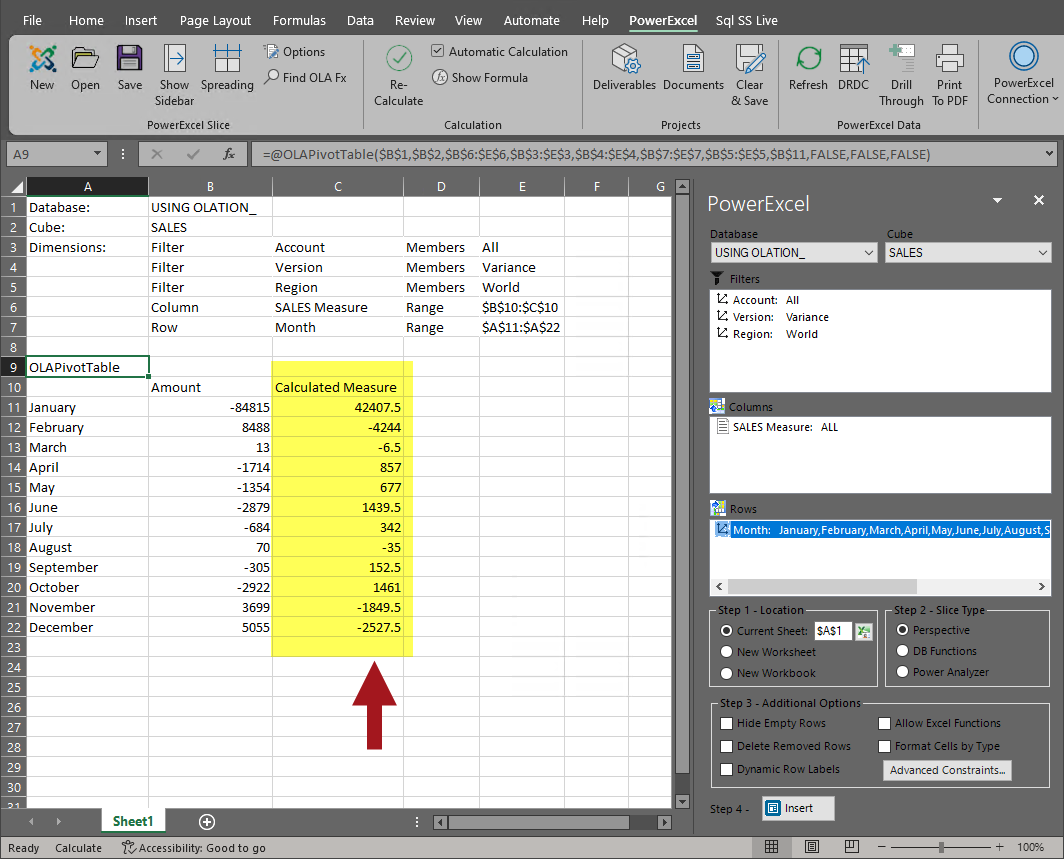
PowerExcel Slice showing SALES cube data